One place to ask AbbaDox for help
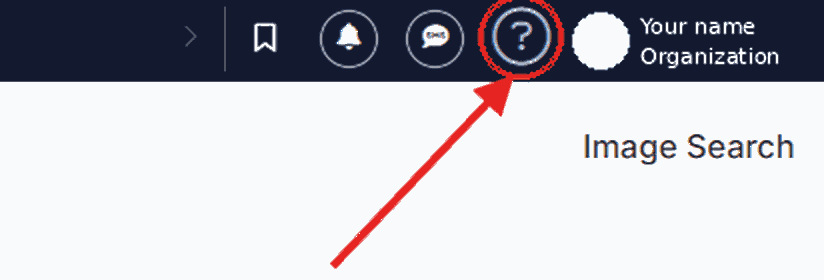
Send AbbaDox a support request from inside AbbaDox (CareFlow): log in and click the question mark (?) at the top right. A few guided questions get your request to the right team, with the details they need to start work straight away.
Click here if you do not have CareFlow access
From CareFlow
The way to reach us: quickest, with your details already filled in.
- Log in to AbbaDox (CareFlow) and click the question mark (?) at the top right. The request page opens with your name, email, phone and company already filled in.
- Check your details and correct anything that's off. Add a colleague's email if they should get updates too.
- First time? If you see User email for Customer Portal login, confirm the address. After you submit, we'll email you an invitation to the Customer Portal.
- Choose your product, then the area (only asked for some products), topic and request type. For common questions, we may show a guide that answers it right away.
- Answer the questions for your topic and describe what's happening. Attach files or record your screen if it helps, and let us know if the issue is affecting your operations.
- Review your answers and submit. Keep the request number shown on screen; a confirmation email follows within minutes.
Sending more than one? Choose Submit another. You stay signed in, and your details stay filled in.
Without CareFlow
If your organization doesn't have CareFlow access.
- Click here if you do not have CareFlow access to request a Customer Portal login.
- To report an outage now, go to www.abbadox.com/abbadox-support-intake. Without signing in, the form is for urgent outage reports only: choose your product, then General Inquiry and System down or major outage.
- Have a Customer Portal login? Select Client sign-in on the form for the full list of request types, with attachments and screen recording.
- Enter your name, work email, phone and company, describe what's happening, then review and submit. Keep the request number shown on screen; a confirmation email follows within minutes.
For anything other than an outage, submit from AbbaDox (CareFlow) or sign in to the Customer Portal first.
To follow your requests, sign in to the Customer Portal at www.abbadox.com/supportportal. First time? Use the link in your invitation email to set up your login.
In the Customer Portal
Your place to keep track of requests.
Follow a request
- Log in to AbbaDox (CareFlow), click the question mark (?) at the top right, then select View & update your company's requests. No access yet? See how to get access.
- See your requests and their current status. Open one to read our messages.
- To add information, reply to the email from AbbaDox Support about that request.
Start a new request
- Log in to AbbaDox (CareFlow) and click the question mark (?) at the top right, or select Submit a Request in the portal menu. Your name, email, phone and company are already filled in.
- Add a colleague's email if they should get updates too.
- Choose your product, then the area (only asked for some products), topic and request type. For common questions, we may show a guide that answers it right away.
- Answer the questions for your topic and describe what's happening. Attach files or record your screen if it helps, and let us know if the issue is affecting your operations.
- Review your answers and submit. Keep the request number shown on screen; a confirmation email follows within minutes, and the request appears in your portal.
If your organization has it turned on, you'll also see your colleagues' requests for your company.
Need Customer Portal access?
The Customer Portal is where you follow your requests. You don't need it to submit a request, but it lets you see where things stand.
- Your organization's administrator gives you access in CareFlow. In AbbaDox, they open Settings → User and Role Assignment and give you the Administrator or Support role.
- Then log in to AbbaDox (CareFlow) and click the question mark (?) at the top right. Submit your first request; the first time, you confirm your email, and we email you an invitation to the Customer Portal.
The form asks for your name, work email and organization. Our team checks your details and emails you an invitation.
What happens after you submit
You'll always know your request arrived and where it stands.
- Right away
- The page shows your request number, for example ABX-261013-AB12. Keep it for any follow-up.
- Within minutes
- You receive a confirmation email from AbbaDox Support, and so does anyone you added.
- Next
- Your request goes straight to the right AbbaDox team, with a priority based on what you told us.
- Along the way
- We email you with updates and questions. Reply to those emails to add information.
- Any time
- Follow your requests and their status in the Customer Portal. If you came from CareFlow with the Administrator or Support role and don't have access yet, we'll email you an invitation.
Why it's better for you
The page is built around what slows support down, so you spend less time explaining and more time back at work.
The right team, first time
Your answers route the request to the people who handle that product and topic, with the right priority.
Less back-and-forth
We ask for the specific details your topic needs up front, so we can start without chasing you for information.
Quicker to fill in
From CareFlow or the Customer Portal, your details are filled in for you. Need to send another? Start the next one without retyping.
Show us, don't just tell us
Attach screenshots or files, or record your screen to show exactly what's happening.
Instant confirmation
A request number on screen and a confirmation email, so nothing gets lost.
See where things stand
Follow your requests and their status in the Customer Portal whenever it suits you.
Keep colleagues informed
Add a colleague and they'll receive the same confirmation and updates.
Urgent issues stand out
Choose "System down or major outage" or flag an operational impact, and your request is prioritised accordingly.
Answers to common questions
Where a guide already exists, we point you to it, so you can often fix things yourself in seconds.
Any device, any time
The page works on desktop, tablet and phone, day or night.
Tips for the fastest resolution
- Send one issue per request. Separate requests can be worked on in parallel.
- Be specific: when it started, who is affected, and the exact wording of any error message.
- Add a screenshot or a short screen recording whenever you can.
- For an outage that stops your work, choose System down or major outage as the request type.
- Share patient information only in the fields that ask for it.
Your information is protected
Requests are sent over an encrypted connection and kept in AbbaDox's secure support system. They are handled by the AbbaDox support team, and you can see your own requests in the Customer Portal.